
If you run a restaurant, your dishes might be delicious, but you probably not always have your local fully booked each and every day. Just distributing menus, cooking and serving will not lead you to a successful restaurant. Giving diners an extra incentive to come back to your restaurant is a great way to turn visitors into loyal customers.
By creating digital stamp cards for your restaurant with Loopy Loyalty, you will not only turn visitors in loyal patrons but be able to send push messages to customers, capture transaction history and view detailed customer insights.
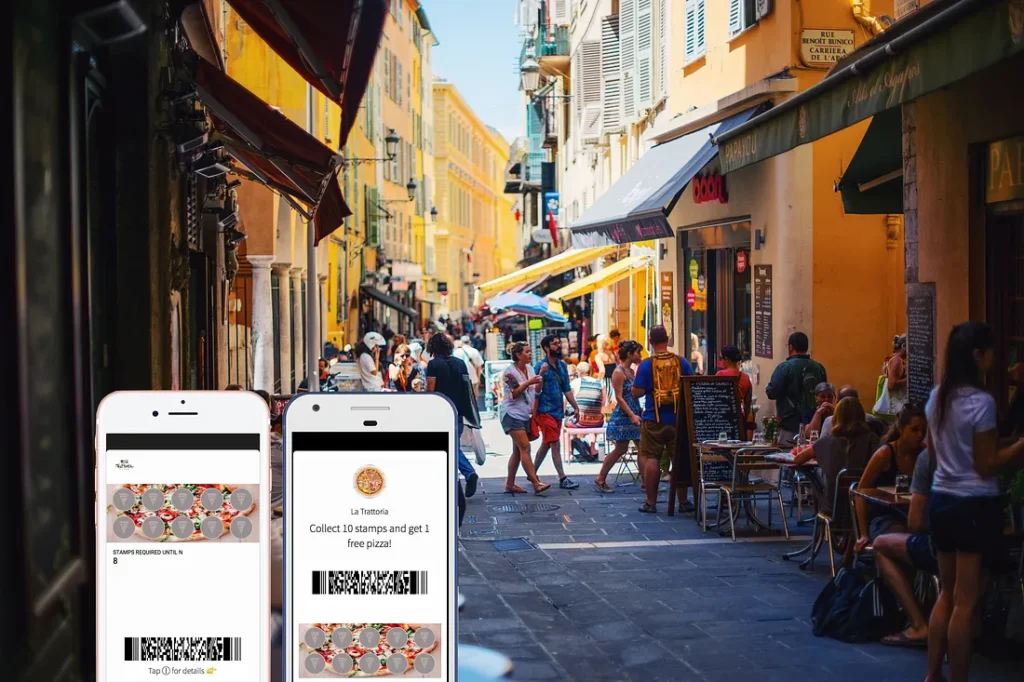
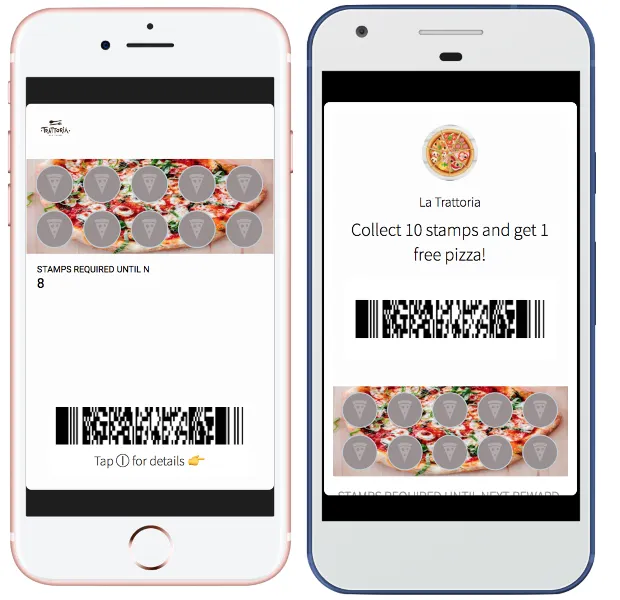
This article explains how to go live with your digital loyalty program in no time and start distributing mobile stamp cards to your customers like these:
Step one: Design your Restaurant Loyalty Card
- Sign up for a Loopy Loyalty account and log in. Setup only takes 1 minute.
2. Create a new card by choosing the Restaurant template (if you want to get started quickly) or choose a blank canvas to create your own design from scratch. In this article we will show you how to create a digital loyalty card for your restaurant from a blank template.
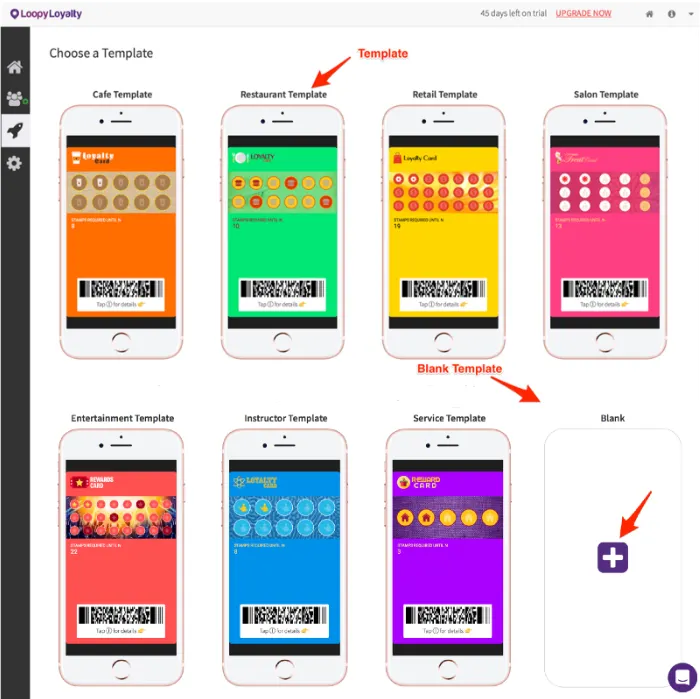
3. Choose a digital loyalty card type for your restaurant:
- Single reward: 1 reward after collecting all stamps/punches.
- Multi reward: multiple rewards at different points on the loyalty card.
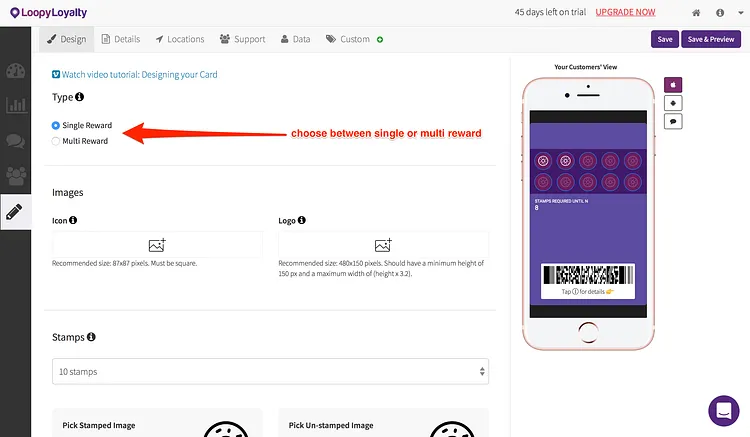
Single reward digital loyalty card examples:
- Buy 1 pizza to get 1 stamp. Collect 10 stamps and get 1 free pizza.
- Get 1 stamp for every breakfast combo purchased. Collect 8 stamps to 50% off your next breakfast combo.
- Spend $5 to get 1 stamp. Get $10 off your next purchase after collecting 10 stamps.
- Get 1 stamp for every dessert purchased. Buy 12 deserts to get 1 free.
Multi reward digital loyalty card examples:
1. Get 1 stamp for every salad/sandwich purchased.
- Collect 5 stamps to get 10% off your next purchase.
- Collect 10 stamps to get a free drink.
- Collect 15 stamps to get a free salad/sandwich.
2. Get 1 stamp for every $5 you spend.
- Collect 4 stamps to get 1 free taco.
- Collect 8 stamps to get 1 free house wine.
- Collect 12 stamps to get 1 free lunch combo.
3. Get 1 stamp for every hamburger meal you purchase.
- Collect 3 stamps to get 1 free side drink.
- Collect 6 stamps to get 1 free side salad.
- Collect 9 stamps to get 1 free hamburger.
4. Upload your logo (2 images). You can see where these images will appear on the right hand side.
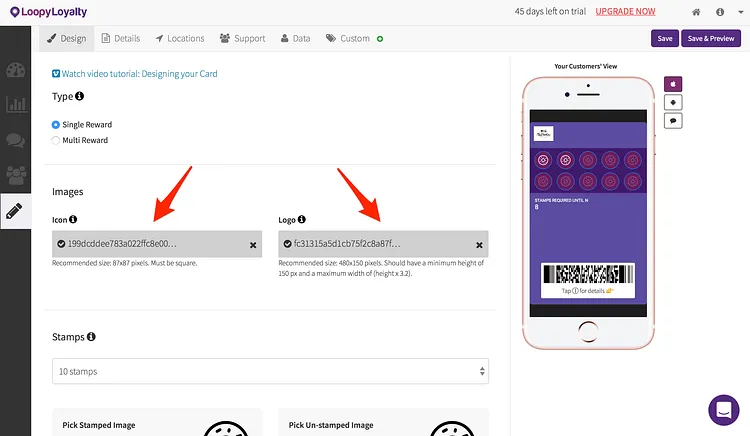
- Icon image — we recommend using an image that is 87 x 87 pixels. This image will appear on the lock screen — next to all of your lock screen messages.
- Logo image — we recommend using an image that is 480 x 150 pixels.This will appear on the front of your digital loyalty card.
Here are some tips on uploading your icon and logo image.
5. Select the number of stamps for your digital stamp card. You can choose up to 30 stamps.
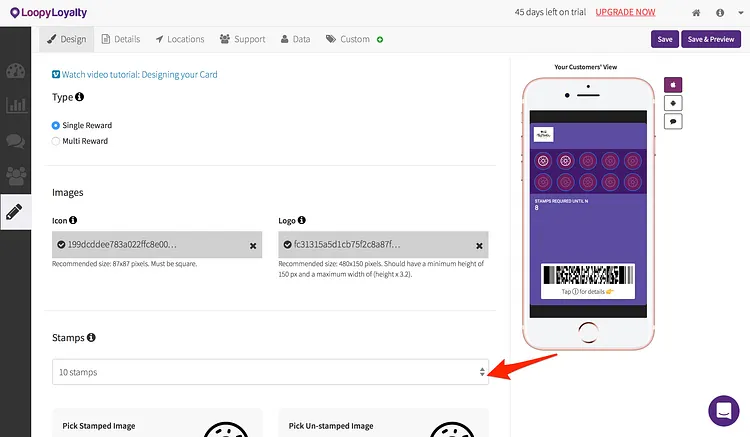
Select your stamp and unstamped images from the gallery or upload your own. You can preview how this looks on the right hand side.
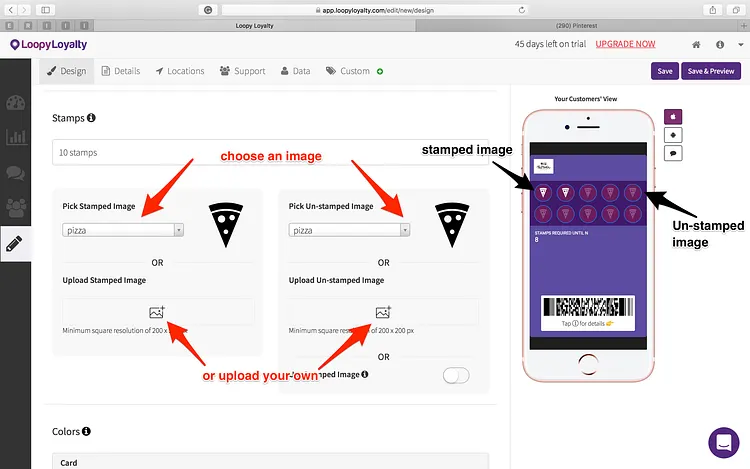
If you need more information about stamp card images, you can have a look at this article.
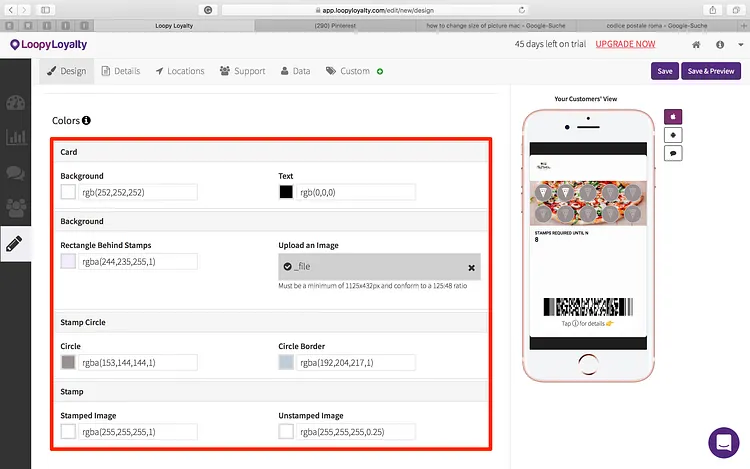
7. Customize the colors of your card, stamps, and stamp circles!
You can even add a custom image behind the stamps like the one shown below. Here are instructions on how to upload a custom background image.
Step 2: Your Digital Loyalty Program Details
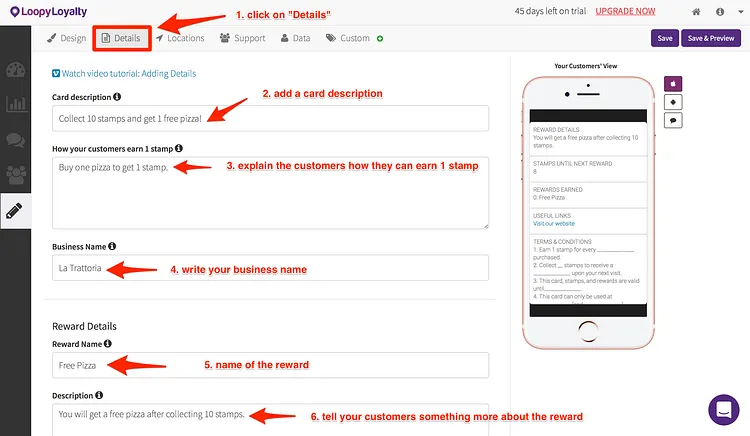
1. Click on the ‘Details’ tab.
2. Add in your stamp card description. For example “Collect 10 stamps and get 1 free pizza!” or “Get cool rewards at La Trattoria”. This will appear on the back of your card in Apple Wallet and on your stamp card enrollment page.
3. Then describe what your customers need to do to earn 1 stamp. For example “Buy one pizza to get 1 stamp” or “Get 1 stamp for every spaghetti purchased”.
4. Write your business name (e.g., La Trattoria)
5. Fill in the reward information with the reward name (e.g., Free Pizza)
6. Add a reward description, where you tell the customers what happens when they have collected all stamps (e.g., You will get a free pizza after collecting 10 stamps)
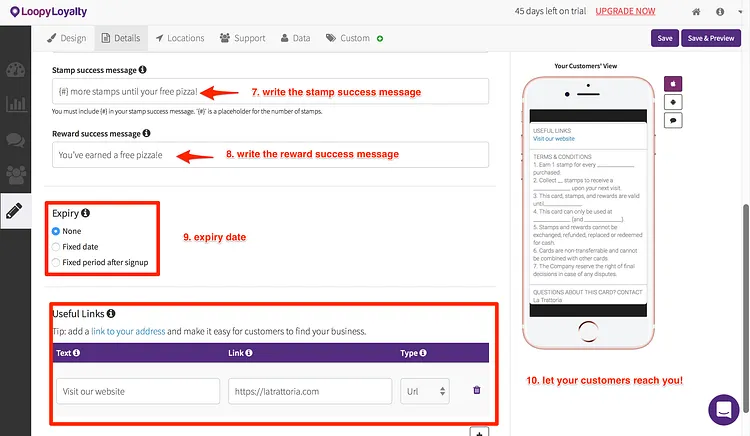
7. Write a stamp success message. This message will be received every time a customer earns a stamp (e.g. “{#} more stamps until your free pizza!”)
8. Write a reward success message. This will be seen y customers when they’ve earned a reward (e.g., “You’ve earned a free pizza!” or “Congrats! Your next pizza is on us.”)
9. Additionally, you can add an expiry date to your card.
10. Add links to your digital stamp card. Include your website, Facebook page, telephone number, email, address, and more.
Step 3: Location & Location Based Messages
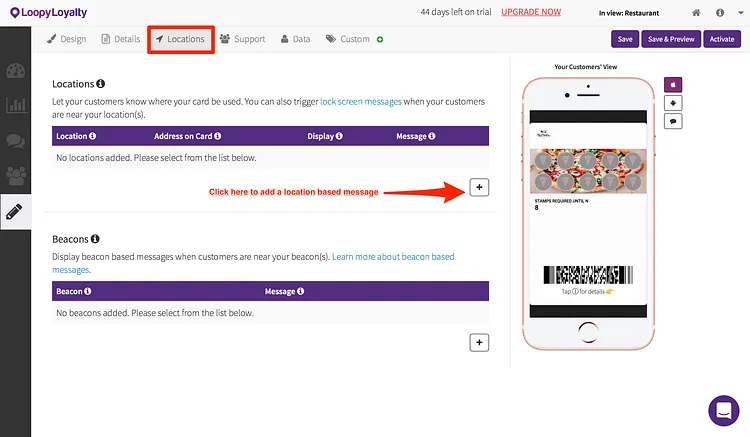
The location let know your customers where your card can be used. You can also trigger lock screen messages when your customers are near your restaurant. In this article, you will find more information about location-based messages.
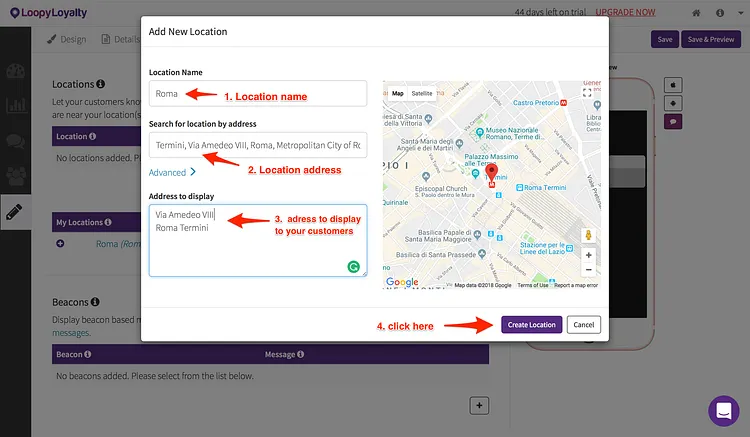
1. To add a location, click on the plus sign.
2. Now fill with the location name(first gap).
3. In the second gap, tap in the exact address (street, number, and city).
4. In the third gap, you can write the address. If a customer is near to the address, he or she will receive a push notification on his/ her phone.
5. Now click on “create location” to save
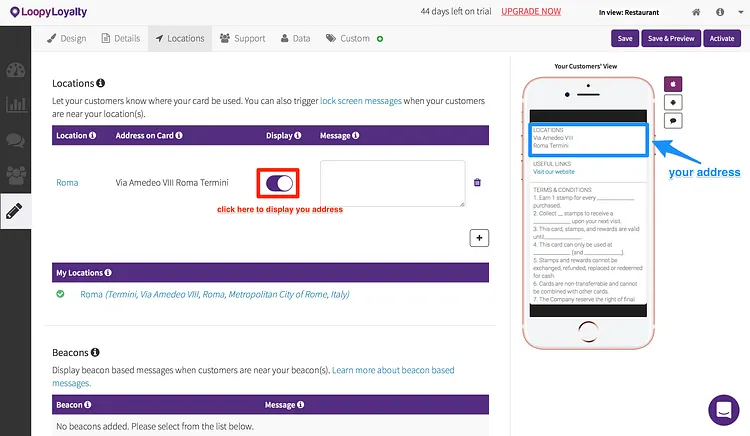
6. Confirm that you want the address to be displayed on the card. This address will be visible for all the card’s holders.
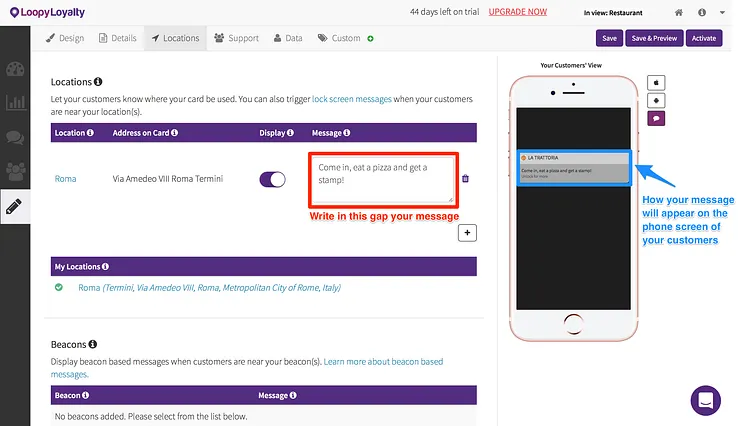
7. In the message gap, you can write the text which your customers will see when they are near your restaurant.
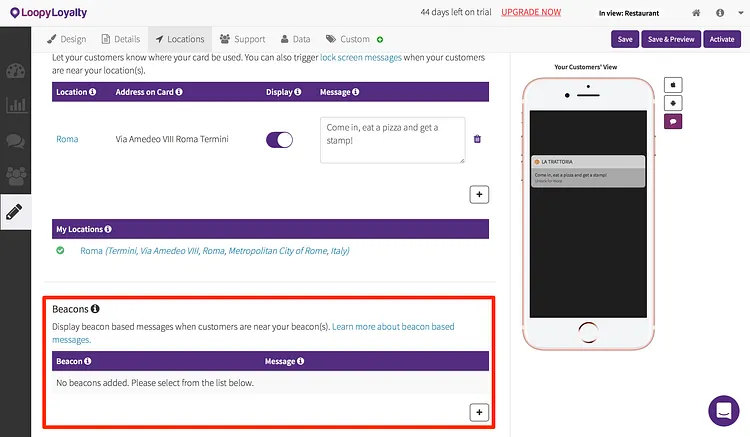
8. Loopy Loyalty also gives you the possibility to send beacon based messages. Here in this article, you can read more about them.
Step 4: Support & Terms & Conditions
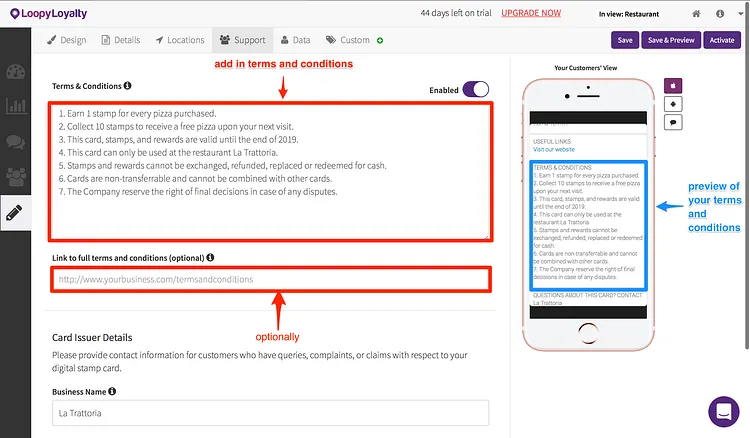
1. Add in the terms and conditions for your digital stamp card. We’ve provided some sample terms and conditions for you — just swap out text where appropriate. Optionally you can also add a link with your full terms and conditions
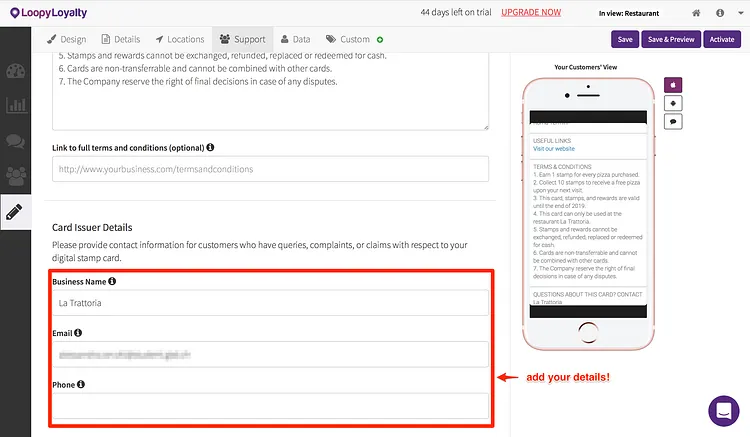
2. Provide contact information for customers who have questions, comments or feedback about your mobile loyalty card.
Step 5: Additional features
Data Collection
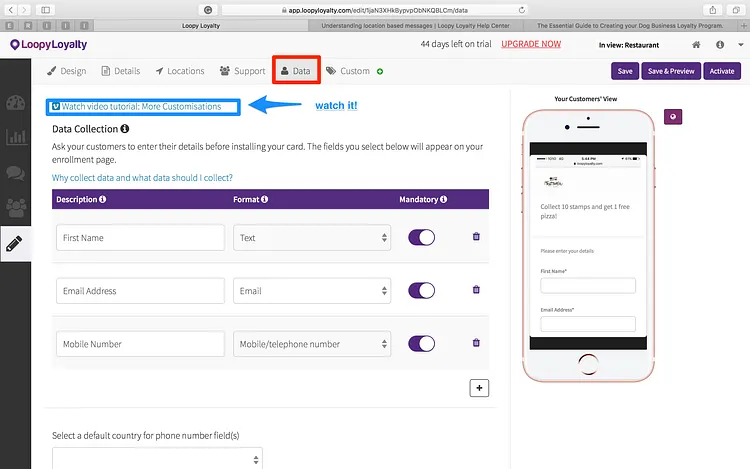
Loopy loyalty gives you the possibility to collect data about your card’s holders. This is an optional function but highly recommended for better customer engagement and insights. There is a video tutorial about data collection which explains how to activate it.
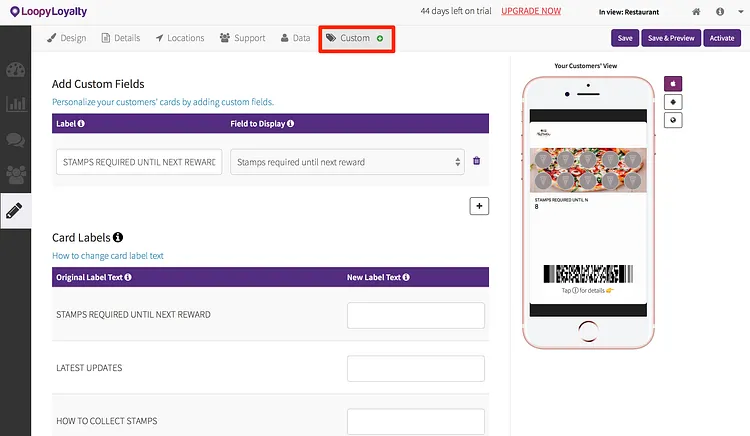
Loopy loyalty also offers the possibility to change the default field(s) on your digital stamp cards. If you like to find out more we recommend this article.
Step 6: Save & Activate your Digital Loyalty Card
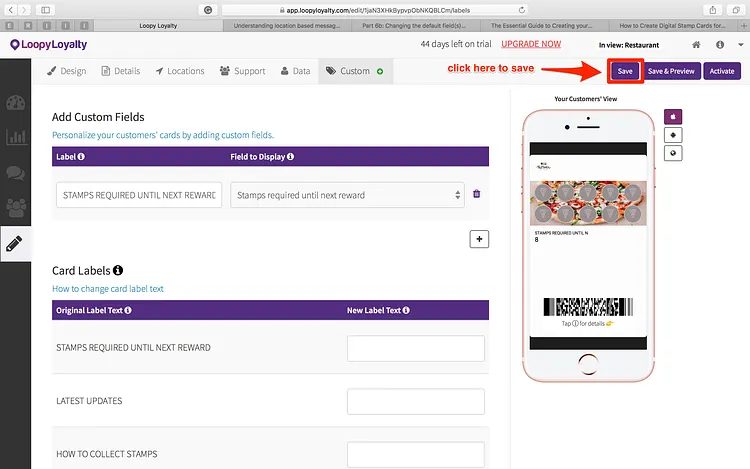
1. Click on the ‘Save’ button in the top right and give your digital punch card a name. For example: “Pizza loyalty card”.
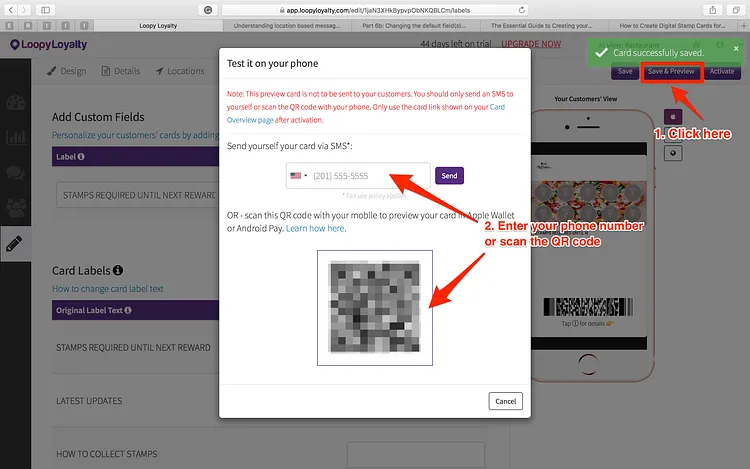
2. Click on ‘Save & Preview’ to see what your digital loyalty card looks like in Apple Wallet or Google Pay. You can scan the QR code or send an SMS of the card URL to your phone.
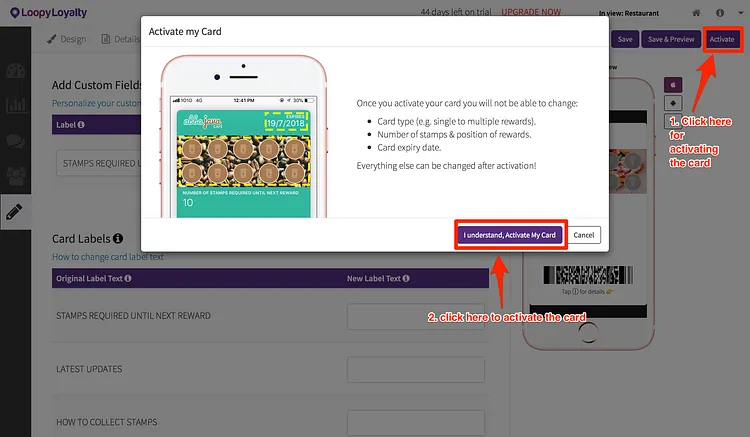
3 When you’re 100% happy with your digital loyalty card, click on ‘Activate’ in the top right. Once you activate your card, you won’t be able to change these things.
And that’s it! Now you can start distributing your digital loyalty card to your customers.
Go to your Dashboard and share your digital loyalty card URL / QR code with your customers.
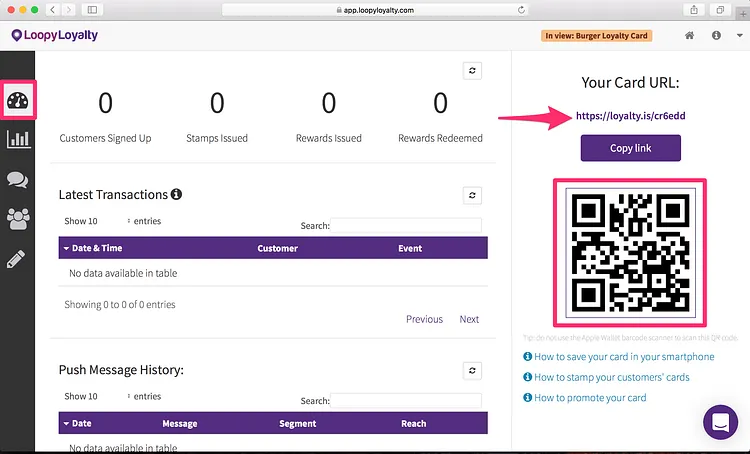
For your restaurant, we would recommend that you share your digital loyalty card URL on:
- Create a poster/tent card and put it on entrance and your counter!
Get staff to encourage customers to enroll as well.
Before going live, please also download the digital stamper app so that your staff can issue stamps to customers after they’ve visited your restaurant.
Pro tip: you can also issue stamps to customers through the web.
About Loopy Loyalty
Loopy Loyalty is the world’s only web application to create and manage digital stamp cards for Apple Wallet and Google Pay. Design your cards online, send push messages to customers, capture transaction history, and view detailed customer insights.
No tech knowledge needed. No app development required.
Learn more at https://loopyloyalty.com/.