

This step by step guide teaches you how to add a digital loyalty card to Google Pay.
If your country doesn’t yet support Google Pay visit .
Looking to replace all your paper stamp cards with digital loyalty cards conveniently stored in Google Pay?
Tell the business to head over to Loopy Loyalty and make it happen today.
Or tell us and we’ll get in touch with them!
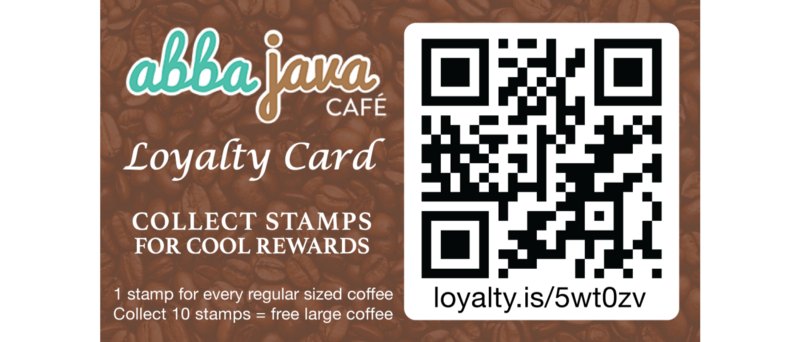
Note: The images are for illustration purposes only. The actual Loyalty Card given to you will be a different color and have a different logo, text, QR code and URL on them. The process to follow, however, is exactly the same.
Method 1: Using a QR code
Step 1: Launch the Google Lens app
If you don’t have Google Lens and don’t want to install it on your device, you can use any other QR code scanning app that allows you to open web pages in your smartphone browser.
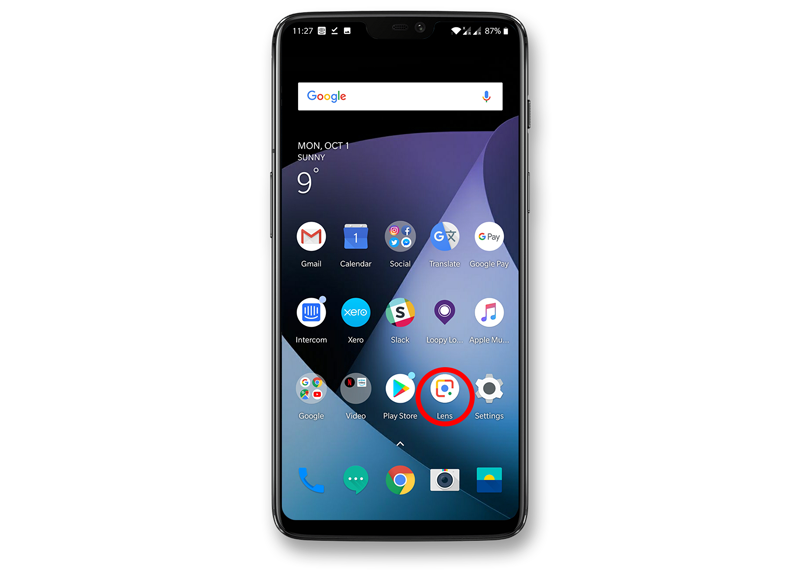
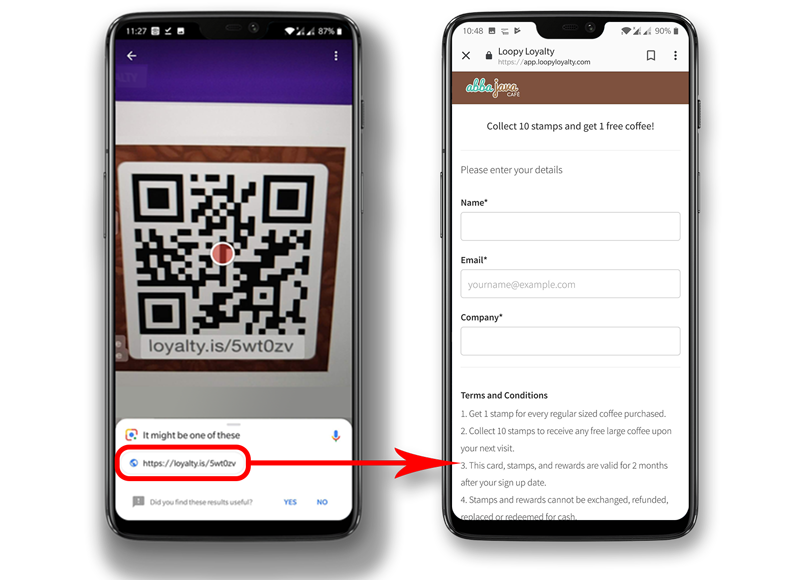
Step 2: Point the camera at the QR code you want to scan
Step 3: Look for the link at the bottom of the screen
This is the web address stored in the QR code.
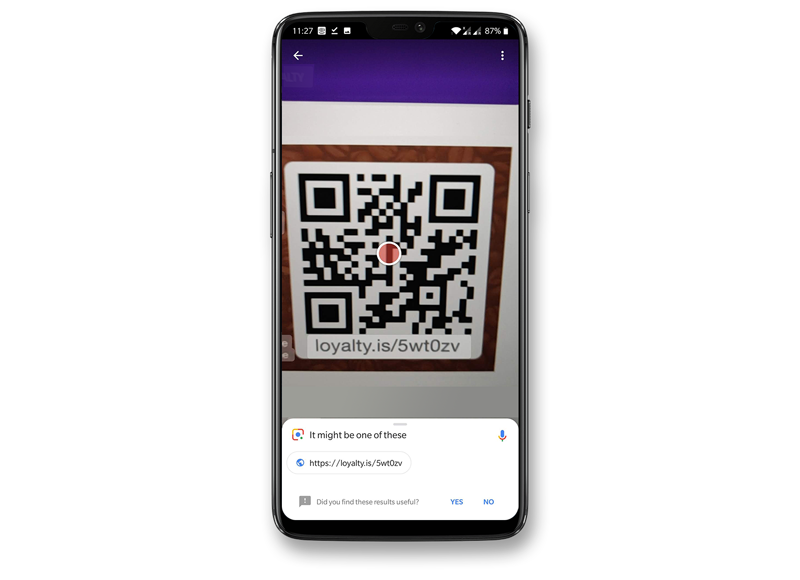
Step 4: Tap on the web link
Your browser will automatically open.
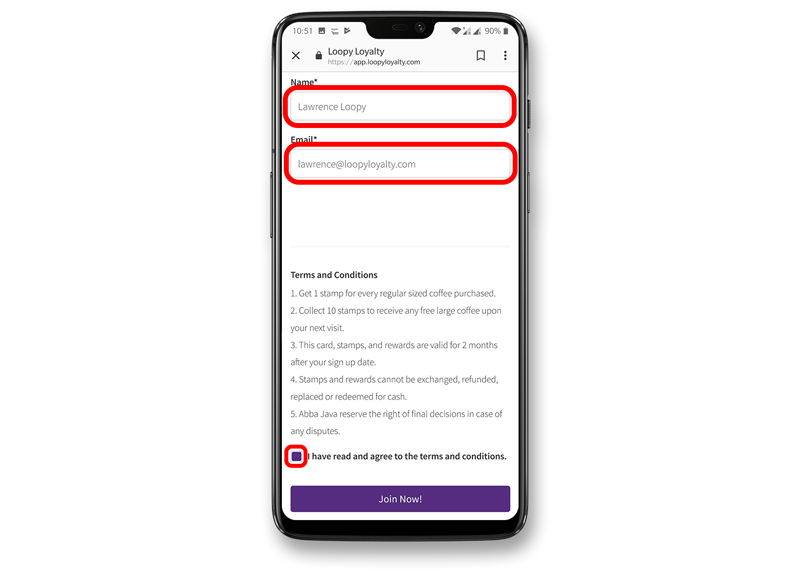
Step 5: Fill in the necessary details
And tick the box to agree to the terms and conditions (if appropriate).
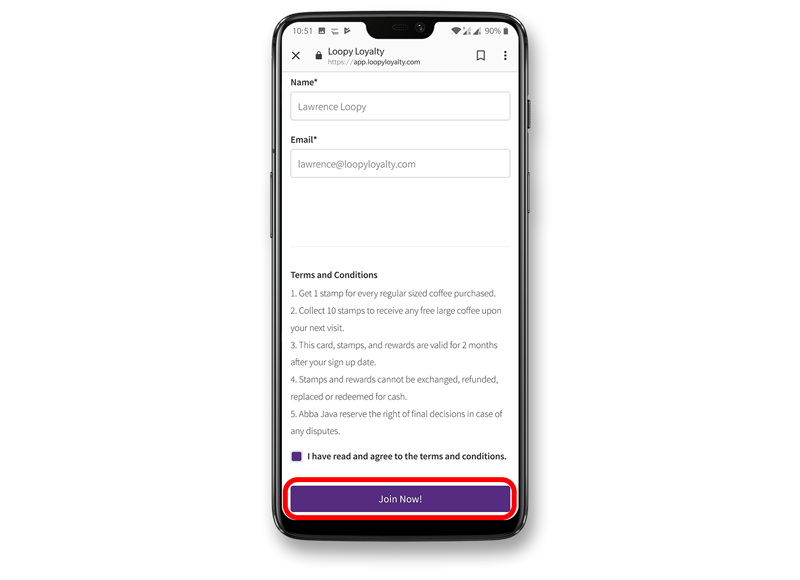
Step 6: Tap on the Join Now! button
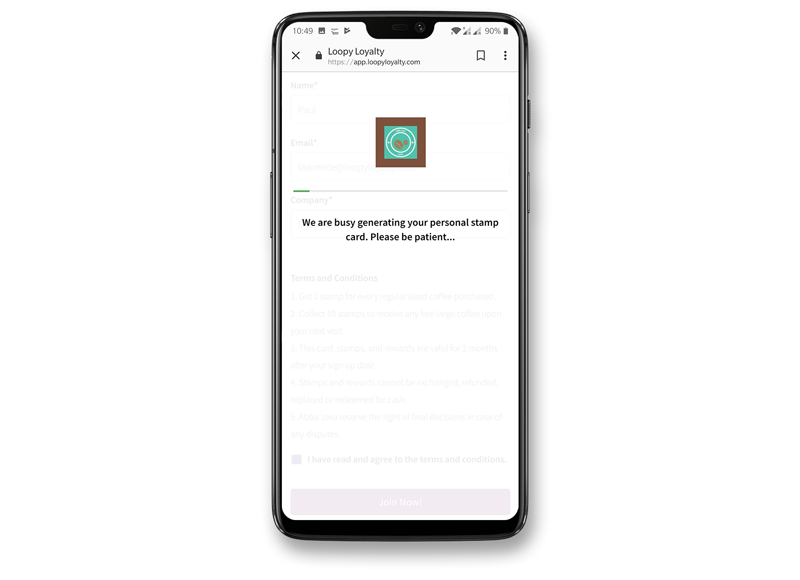
Step 7: Wait a few seconds
After a few seconds you will see your Loyalty Card.
Step 8: Tap the GPay | Save to phone button
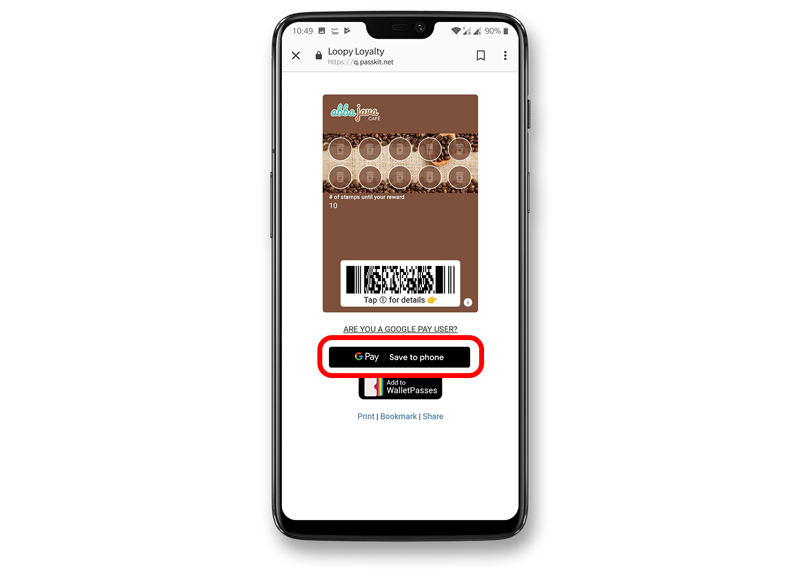
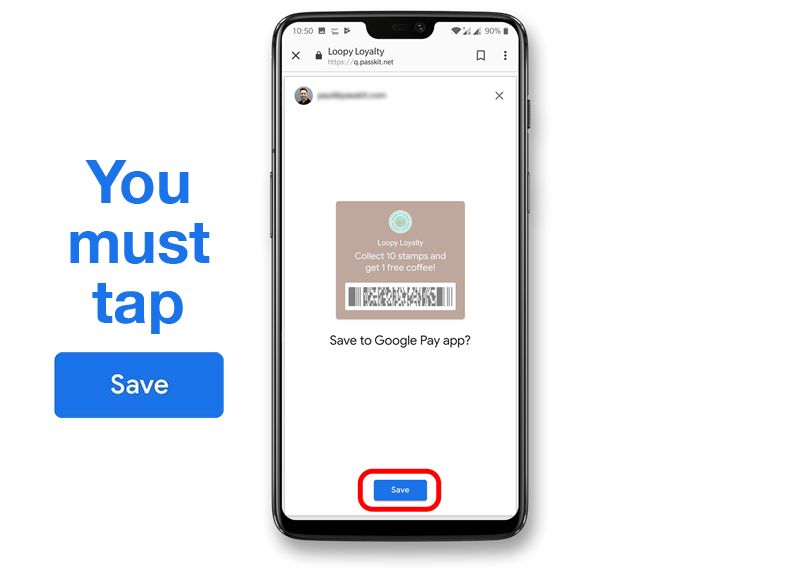
Step 9: Tap Save — THIS IS VERY IMPORTANT!
If you do not tap Save then the loyalty card will not be added to your Google Pay application.
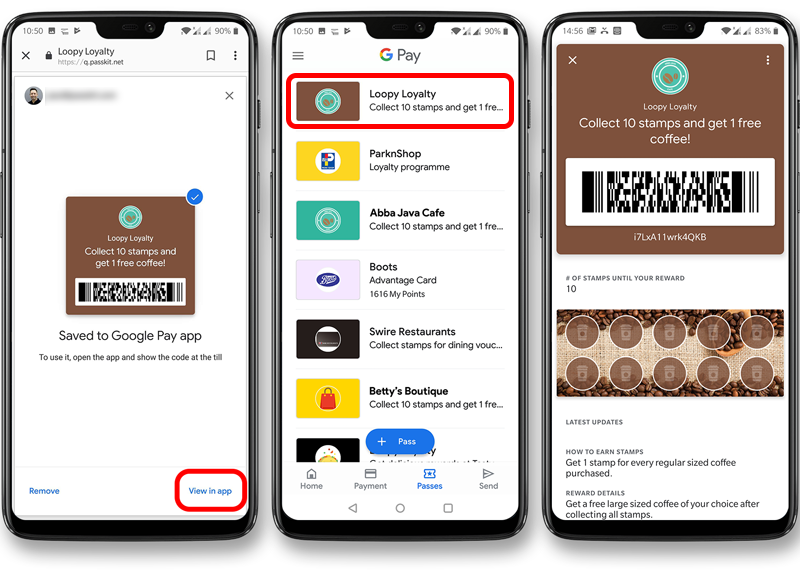
Step 10: Your Loyalty Card is now stored in Google Wallet
You can check to see your loyalty card is in Google Pay by tapping ‘View in app’.
Method 2: If you do not have a QR Code scanning app
If you have not been given a QR code, or are not able to scan QR codes, simply type the web link in your browser and follow steps given to you and then follow steps 5 — 10.