

Grooming.
Nail trimming.
Boarding.
Pet supplies.
Puppy training.
Dog walking.
People will do a lot for their dogs; this goes without saying.
Furthermore, most dog owners will keep doing whatever it takes to ensure that their pooch is clean, well-groomed, and healthy.
As a pet business this gives you an outstanding opportunity to capture repeat customers. Tapping into and expanding your repeat clientele is a fantastic way to ensure that your dog business is always generating a steady revenue stream.
When you start offering repeat customers a reward or discount for their loyalty they will remember you and keep bringing their beloved canine back to you over and over again.
When executed well, a digital loyalty program will get:
- Josephine to visit your dog salon 5x more per year.
- Mary to bring her pooch for boarding when she travels for business, every month.
- And get Paul to buy pet supplies from you and never think twice about going elsewhere.
From here you can work on scaling and promote the business to get even more new customers.
This post will show you how to create a digital loyalty program that will drive customers back to your dog business. And to make sure that they and their furry friends become customers for life.
By the end of this post, you will be able to go live with your digital loyalty program and start distributing mobile stamp cards to your customers.
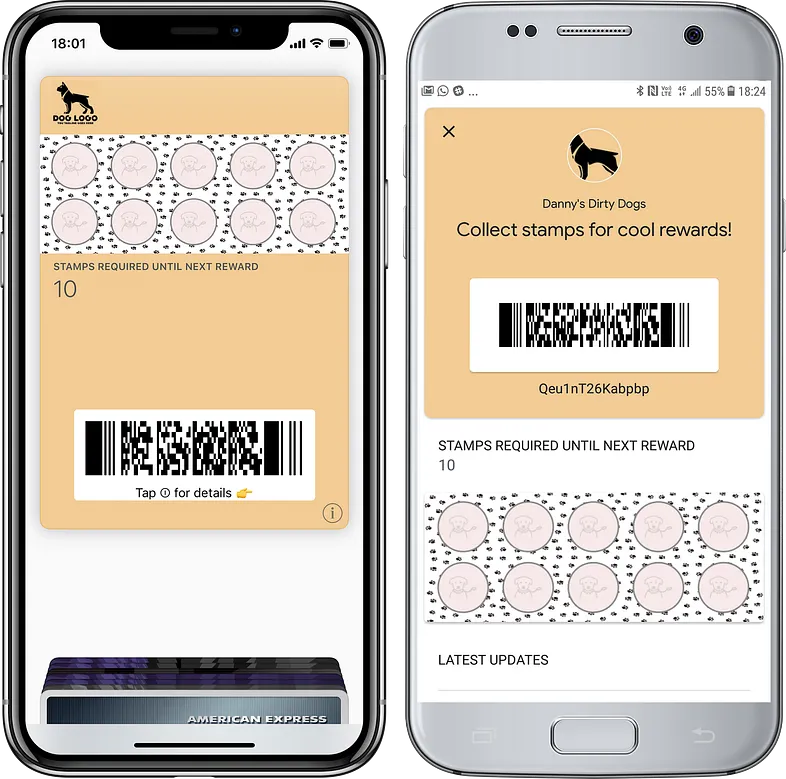
Try out the loyalty card above!
Step 1 — Design your own Dog Business Loyalty Card
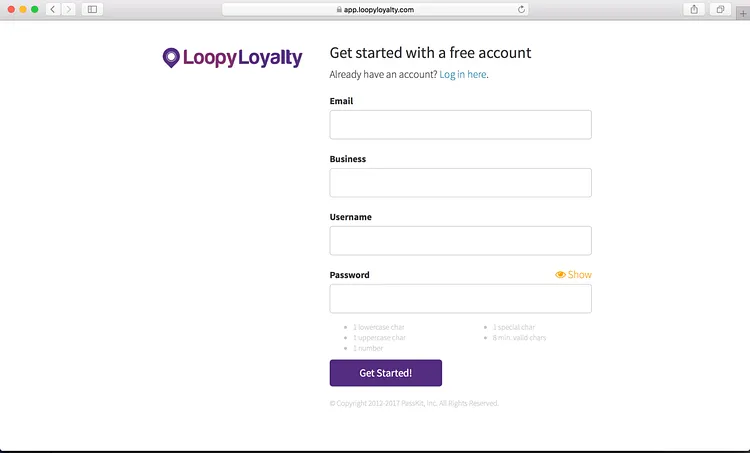
1 — Create a Loopy Loyalty account.
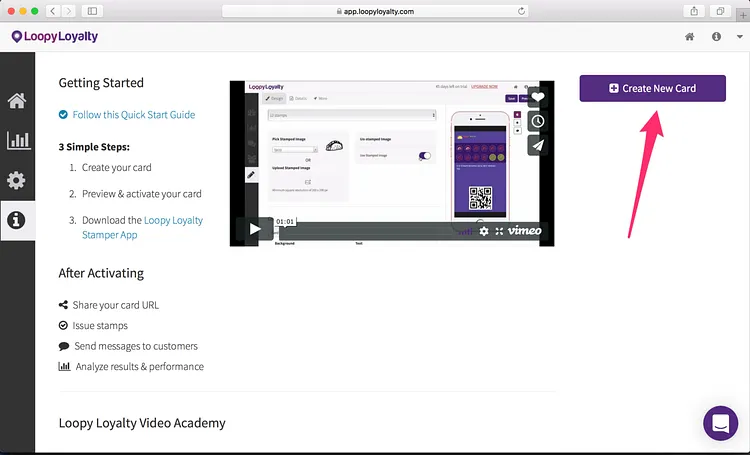
2 — Create a new loyalty card by clicking on the button or in the dropdown menu.
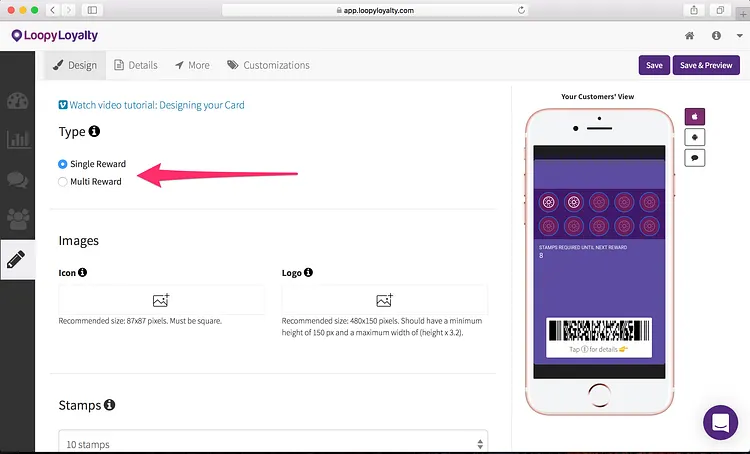
3 — Choose a digital loyalty card type for your dog business:
- Single reward: 1 reward after collecting all stamps/punches.
- Multi reward: multiple rewards at different points on the loyalty card.
Single reward digital loyalty card examples:
- Purchase 1 grooming session to get 1 stamp. Collect 6 stamps and get 1 free grooming session.
- Get 1 stamp for every doggy daycare purchased. Collect 8 stamps to 50% off your next doggy daycare.
- Spend $25 to get 1 stamp. Get $45 off your next purchase after collecting 10 stamps.
- Get 1 stamp for every dog walk purchased. Buy 12 dog walks to get 1 free.
Multi reward digital loyalty card examples:
1. Get 1 stamp for every puppy visit purchased.
- Collect 5 stamps to get 10% off your next puppy visit.
- Collect 10 stamps to get a free puppy visit.
- Collect 15 stamps to get a free puppy visit + walk.
2. Get 1 stamp for every $5 you spend.
- Collect 4 stamps to get 1 free chewy toy.
- Collect 8 stamps to get 1 free bag of dog cookies.
- Collect 12 stamps to get 1 free dog leash.
4 — Upload your logo (2 images). You can see where these images will appear on the right hand side.
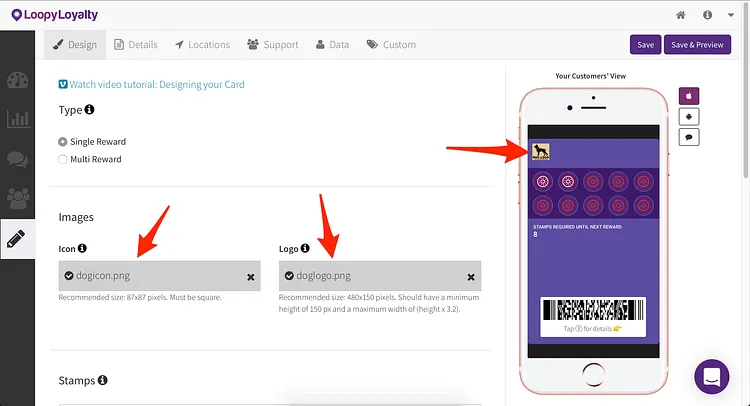
- Icon image — we recommend using an image that is 87 x 87 pixels. This image will appear on the lock screen — next to all of your lock screen messages.
- Logo image — we recommend using an image that is 480 x 150 pixels.This will appear on the front of your digital loyalty card.
Here are some pointers on uploading your icon and logo image.
5 — Determine how many stamps you want on your dog business loyalty card. Select up to 30 stamps.
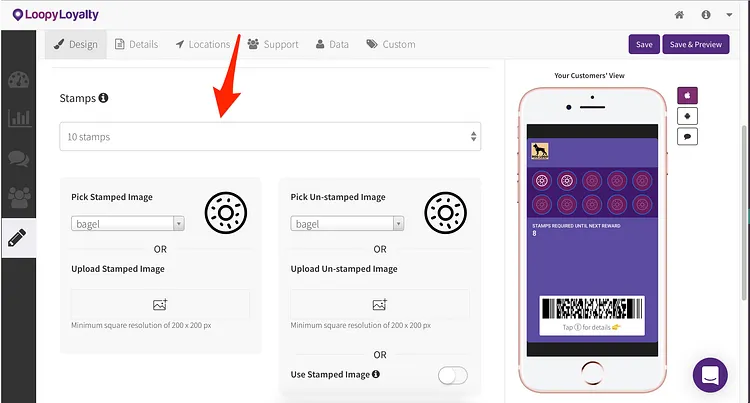
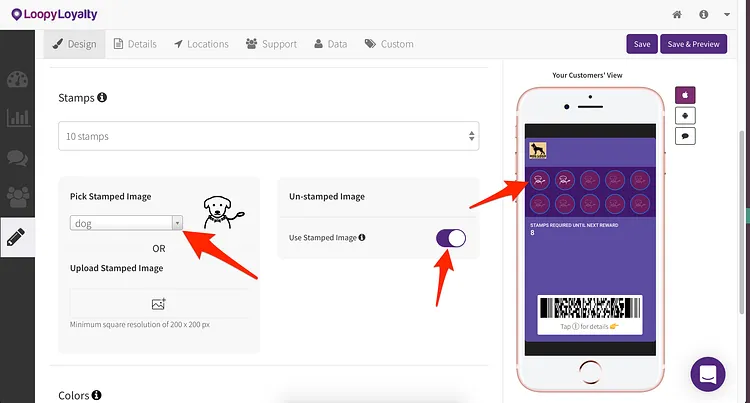
6 — Select your stamp and unstamped images from the gallery or upload your own. You can preview how this looks on the right hand side.
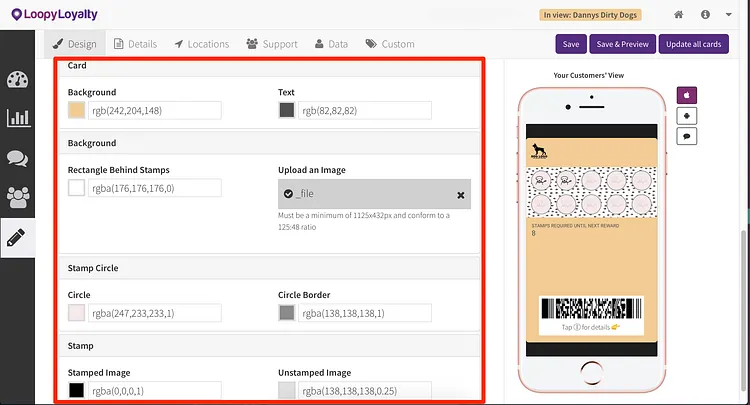
7 — Bring your digital loyalty card to life by adjusting the colors of your card, stamps, and circles behind the stamps.
You can even add a custom image behind the stamps like the one shown below. Here are instructions on how to upload a custom background image.
Step 2 — Your Digital Loyalty Program Details
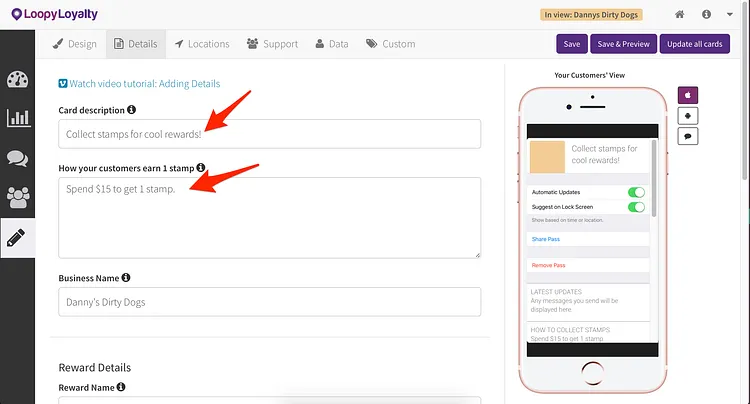
1 — Click on the ‘Details’ tab at the top.
Add in your digital loyalty program description. For example “Get rewarded at Paw Buddy!” or “Your Digital Loyalty Card” or “Collect stamps for cool rewards!”. This will appear on the back of your card in Apple Wallet and on your digital loyalty program enrolment page.
Then describe what your customers need to do to earn 1 stamp. For example “Spend $10 to get 1 stamp” or “Get 1 stamp for every dog grooming you purchase”.
2 — Let customers know what they will get for collecting all stamps.
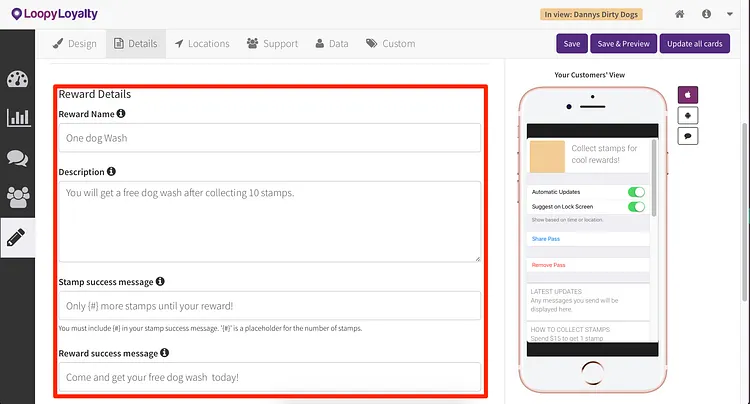
- Enter name of your reward (e.g. “Free grooming session”).
- Enter the description of the reward (e.g. “You will receive a free dog grooming session after collecting all stamps.”).
- Stamp success message: the message customers will receive every time they earn a stamp. “{#} more stamps until your free grooming!”. Important: use the {#} as the placeholder. The {#} will be replaced by the actual number of stamps.
- Reward success message: the message customers will see when they’ve earned a reward. “Come and get your free dog grooming today!”
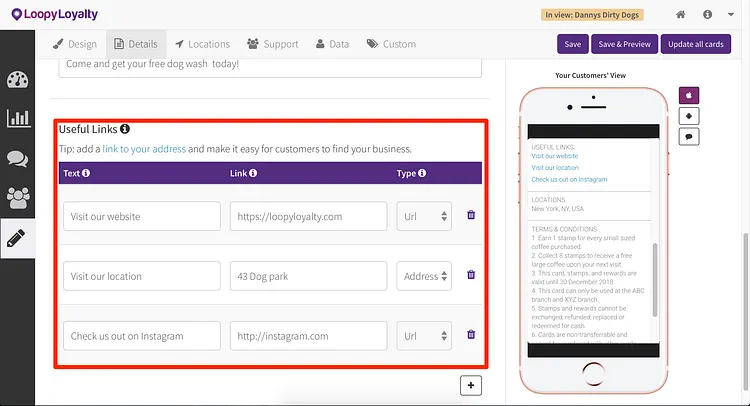
3 — Add links to your digital loyalty card: your address, your Facebook page, phone number, website and more.
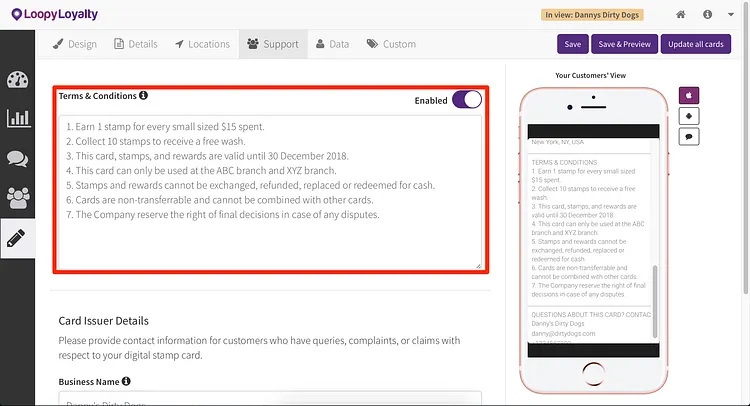
4 — Add in the terms and conditions for your dog business digital loyalty program. We’ve provided some sample terms and conditions for you — simply swap out text where appropriate.
Don’t want terms and conditions? You can disable it.
Step 3 — Expiry, Data Collection, and Location Based Messages
1 — Click on the ‘More’ tab at the top.
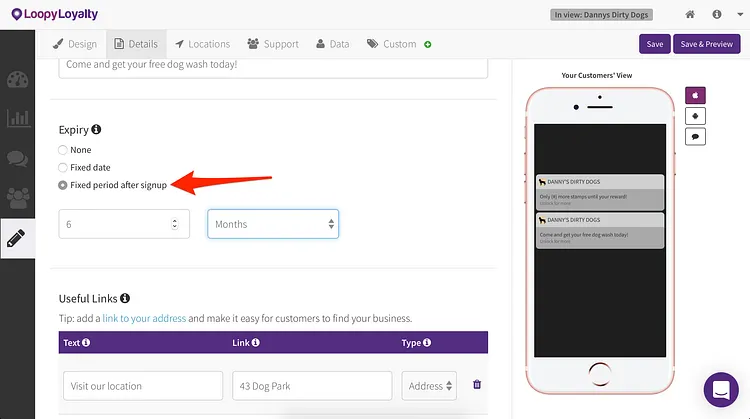
Choose an expiry option for your digital loyalty card. For example:
- Cards will never expire
- Cards will expire on 31 December 2018
- Cards will expire 6 months after a customer signs up for it
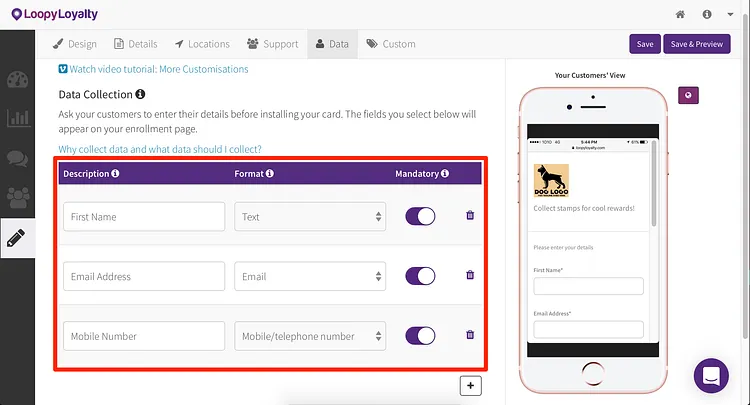
2 — Data collection: determine what information you want to collect from customers when they sign up for your digital loyalty card. This will appear on the enrollment form and all the information you collect will be stored in your ‘Customers’ page.
For example, collect your customer’s first name and email address. This will make it easy for you to identify customers later on and to get to know them personally!
You can preview how your enrollment page looks like on the right hand side.
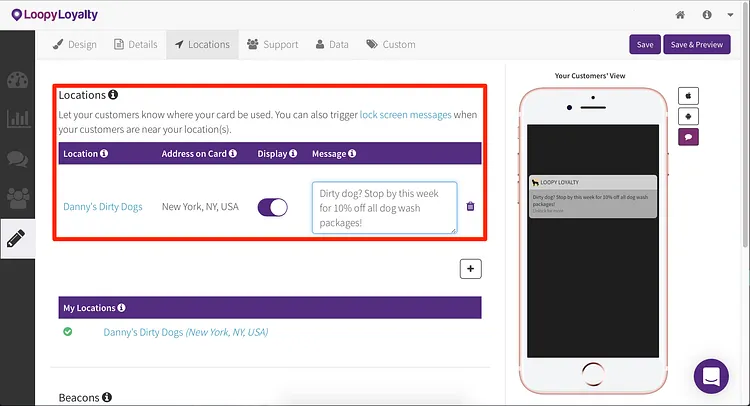
3 — Optional: trigger a message when your customers are near your dog salon. All you need to do is add in your location add in your location and type in the message you want to display when they are near your nail salon.
For example: “Welcome to Danny’s Dog Salon” or “Have you tried our new puppy training class? 10% off for members this week!”
Learn more about how location based messages work here.
Step 4 — Save & Activate your Digital Loyalty Card
1 — Click on the ‘Save’ button in the top right and give your digital loyalty card a name. For example: “Pet Grooming Loyalty Card”.
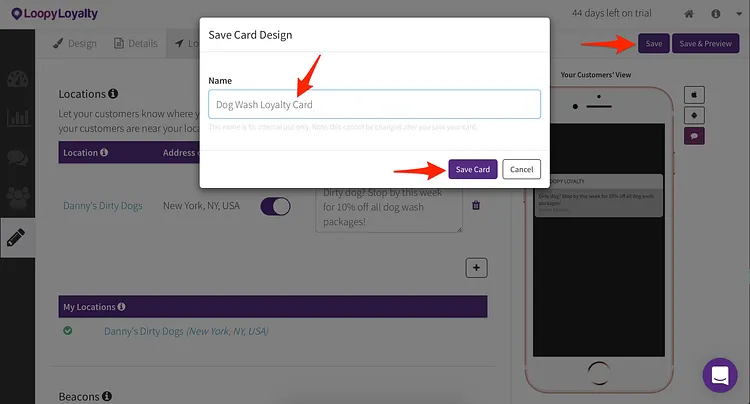
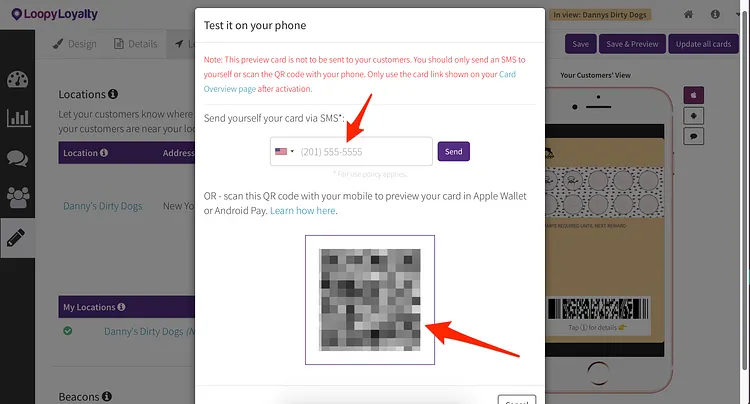
2 — Click on ‘Save & Preview’ to see what your digital loyalty card looks like in Apple Wallet or Google Pay. You can scan the QR code or send an SMS of the card URL to your phone.
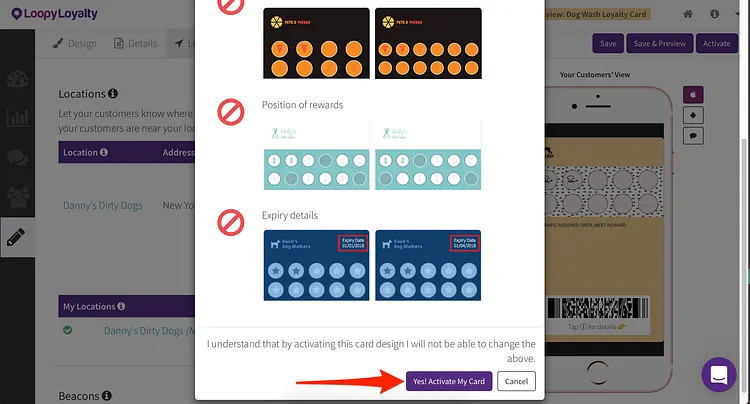
3 — When you’re 100% happy with your digital loyalty card, click on ‘Activate’ in the top right. Once you activate your card, you won’t be able to change these things.
And that’s it! Now you can start distributing your digital loyalty card to customers.
Go to your Dashboard and share your digital loyalty card URL / QR code with your customers.
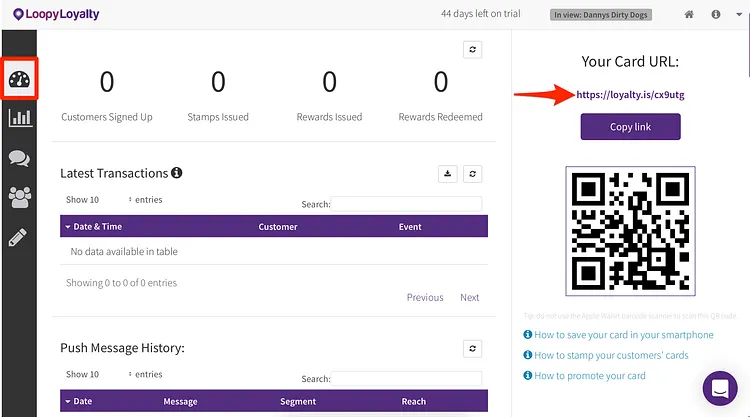
For your dog business, we would recommend that you share your digital loyalty card URL on:
- Create a poster/tent card and put it on your counter!
Get your staff to encourage customers to enrol as well.
Before going live, please also download the digital stamper app so that you or your staff can issue stamps to customers when they visited your dog business.
Pro tip: you can also issue stamps to customers through the web.
About Loopy Loyalty
Loopy Loyalty is the world’s only web application to create and manage digital stamp cards for Apple Wallet and Google Pay. Design your cards online, send push messages to customers, capture transaction history, and view detailed customer insights.
No tech knowledge needed. No app development required.
Learn more at https://loopyloyalty.com/.